
1
Account registration
On the homepage click Sign up and create an account with any email. The app is for everyone: companies, freelancers, and individuals, not only legal entities.
Guide
Menu, bar list, or daily specials
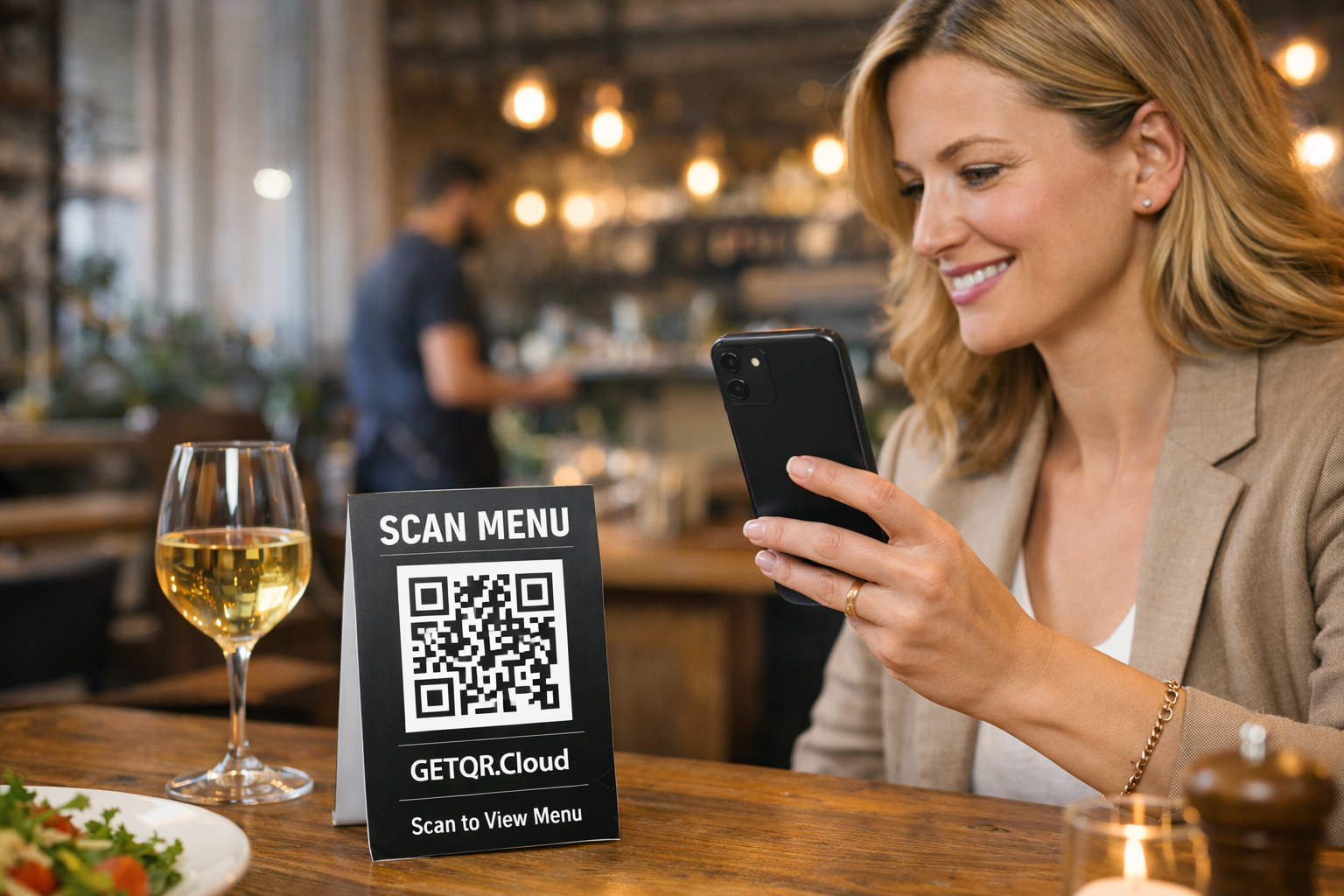
After scan, guests instantly open your current menu in PDF.
On the homepage click Sign up and create an account with any email. The app is for everyone: companies, freelancers, and individuals, not only legal entities.
After registration, verify your email using the link sent to your inbox, then sign in. This step is required for full dashboard access and all creation features.
In dashboard click Create QR code and select the required type. If unsure, this guide always shows the exact type name and what to fill in each field.
This type is designed for one document that opens directly in reader mode. Use a clean PDF with readable text so it works comfortably on phones.
In the form choose Restaurant: QR + PDF menu and add your file. After upload, wait for completion and verify the file is correctly attached to the QR.
Open preview and browse multiple pages to confirm smooth document behavior. For longer PDFs, check first-load speed in particular.
This type is ideal for menus, company brochures, or product catalogs. Keep one QR code long-term and update only the PDF content.