
1
Account registration
On the homepage click Sign up and create an account with any email. The app is for everyone: companies, freelancers, and individuals, not only legal entities.
Guide
Workflow for restaurants, bars, and cafes
Complete process from registration to live digital menu deployment via QR.
On the homepage click Sign up and create an account with any email. The app is for everyone: companies, freelancers, and individuals, not only legal entities.
After registration, verify your email using the link sent to your inbox, then sign in. This step is required for full dashboard access and all creation features.
In dashboard click Create QR code and select the required type. If unsure, this guide always shows the exact type name and what to fill in each field.
Before uploading, prepare one current PDF menu with readable prices and text. It is best to name the file by season or month so updates stay organized later.
In Restaurant: QR + PDF menu type, upload the prepared file and wait for upload completion. After saving, the PDF opens instantly after scan with no extra taps.
Test the QR code on at least one iPhone and one Android device to ensure speed and readability. Verify page scrolling and font size for real customer use.
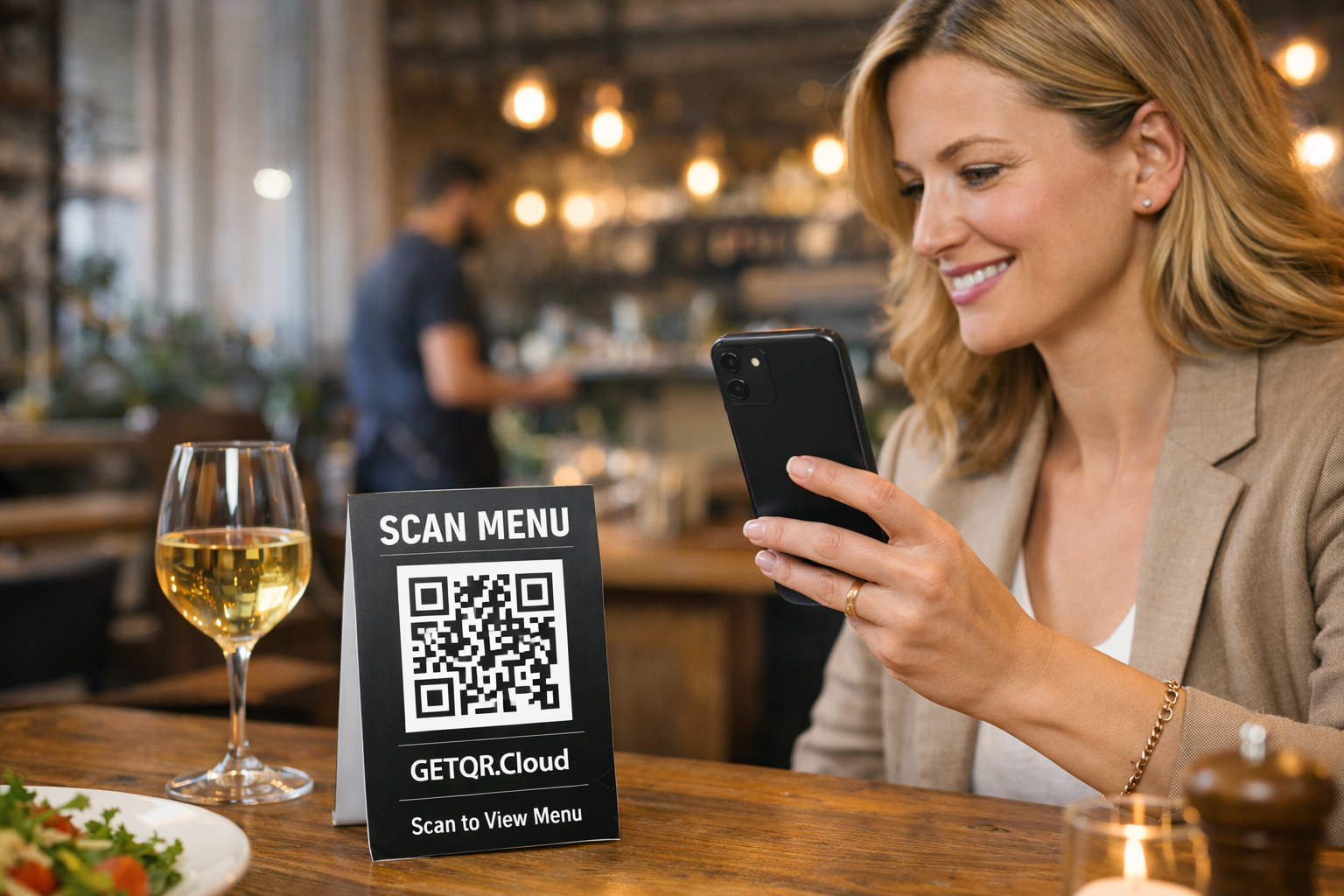
Print QR on tables, stands, and pickup points where guests naturally pause. When prices change, replace only the PDF in admin without reprinting QR codes.