
1
Account registration
On the homepage click Sign up and create an account with any email. The app is for everyone: companies, freelancers, and individuals, not only legal entities.
Guide
Name, phone, email, website, and social links
Fast save to mobile contacts without manual typing.
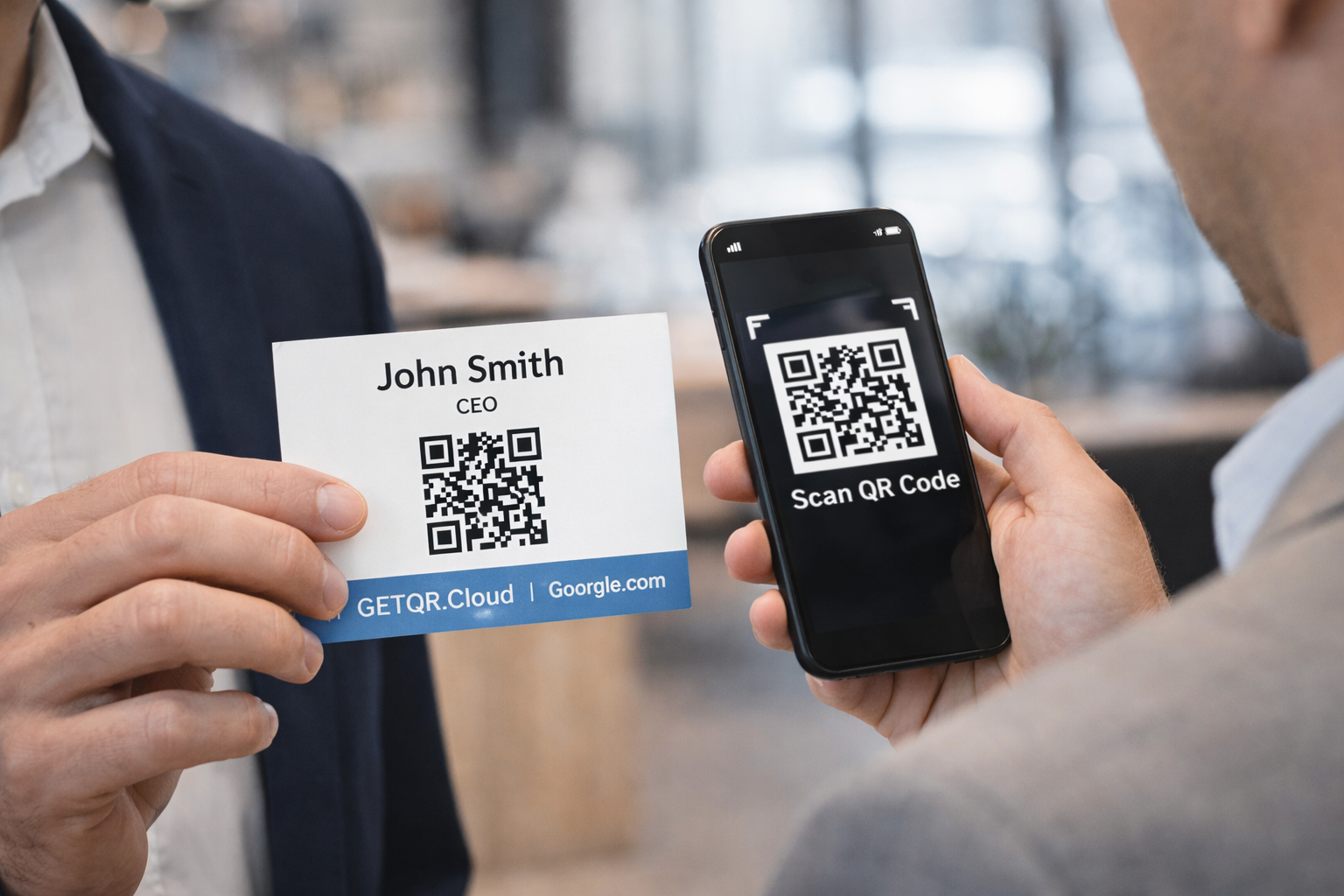
On the homepage click Sign up and create an account with any email. The app is for everyone: companies, freelancers, and individuals, not only legal entities.
After registration, verify your email using the link sent to your inbox, then sign in. This step is required for full dashboard access and all creation features.
In dashboard click Create QR code and select the required type. If unsure, this guide always shows the exact type name and what to fill in each field.
Before creation, prepare your name, phone, email, and website details. Adding LinkedIn or a company page improves trust and conversion.
Fill all important e-VCard fields as accurately as possible. Fewer errors in details means fewer lost contacts after scan.
After saving, scan the QR on mobile and confirm contact can be saved in one tap. Also verify diacritics, phone format, and email address.
Place this QR on business cards, email signatures, rollups, or presentations. It is especially useful for networking and sales meetings.